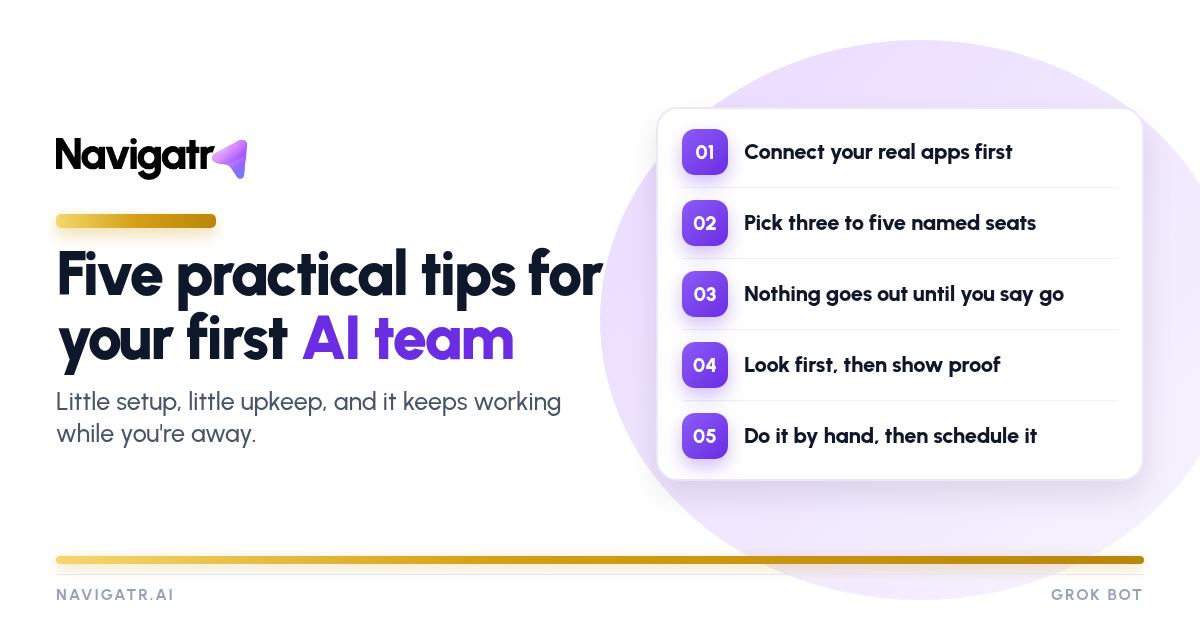
Five practical tips for setting up your first AI team
Real steps you can take this week, from the apps to connect first to the routine that keeps work moving while you're away.
Most business owners don't need another chatbot. They need work done: invoices chased, follow-ups sent, the week's priorities on one page. With Grok Bot you can set up a small team of AI assistants that does exactly that, with little setup and little ongoing upkeep. Each assistant has its own chat, its own memory and its own scheduled routines, and they share one always-on computer, so a file, tool or app login set up once is there for all of them.
The difference between a team that helps and one that creates noise comes down to a few habits. Here are the five we recommend.
Tip 1: Connect your real apps first
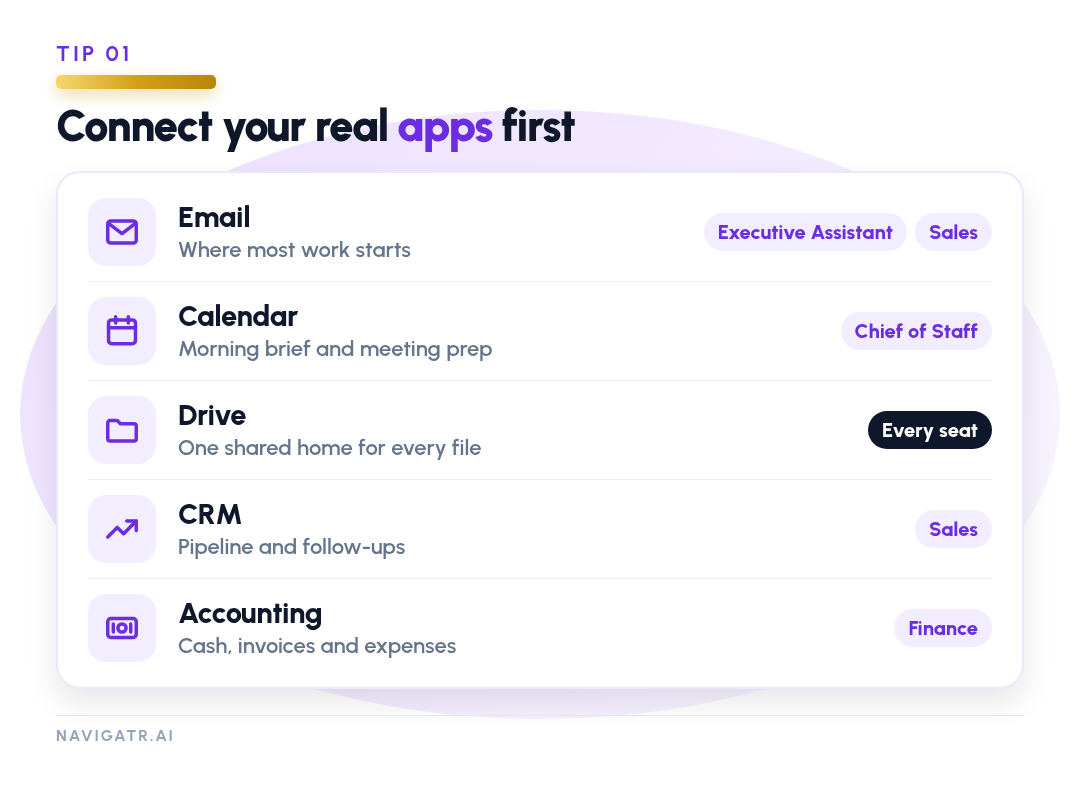
An assistant is only as useful as what it can see. Before you write a single instruction, connect the apps your business already runs on, using the built-in connectors rather than having an assistant click around websites.
Connect in this order:
- Email (Gmail or Outlook). This is where most work starts.
- Calendar, for the morning brief, meeting prep and scheduling.
- Drive (Google Drive or OneDrive), so every file has one shared home.
- Team chat (Slack or Teams), for reading context. Posting still waits for your approval.
- CRM and accounting, for your Sales and Finance seats.
Set up each connection once and every seat can use it. Keep business and personal accounts on separate connections so each assistant only sees what it should.
Tip 2: Pick three to five named seats
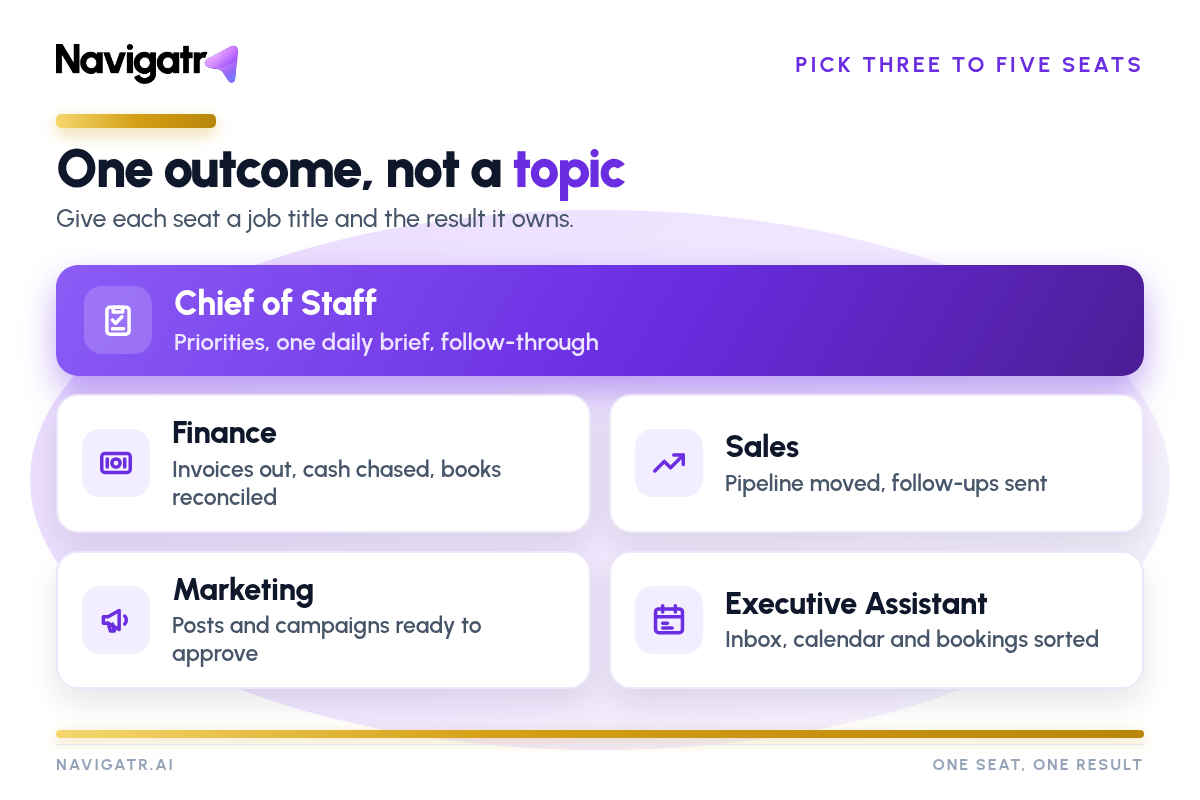
The most useful lesson we know: give each assistant a job title and the result it owns, not a topic to "help with". "Every weekday morning, give me a one-page cash and unpaid-invoices summary" works. "Help with finance" does not.
A good starter set for most businesses:
- Chief of Staff: your weekly priorities, coordinating the other seats, and one decision-ready brief when something needs you.
- Executive Assistant: inbox, calendar, follow-ups and meeting prep.
- Sales: the live pipeline and follow-ups.
- Finance: cash position, invoices and expense booking.
- Marketing: posts and campaigns, ready for you to approve.
Start with three to five. Add a seat only when a real, repeating job has no owner. Every assistant takes attention to set up and supervise, and growing too fast is an easy early mistake.
Your Chief of Staff matters most. The other seats report to it, it runs any job that needs several seats, and it brings you one recommendation instead of five updates or a menu of options.
Tip 3: Nothing goes out until you say go
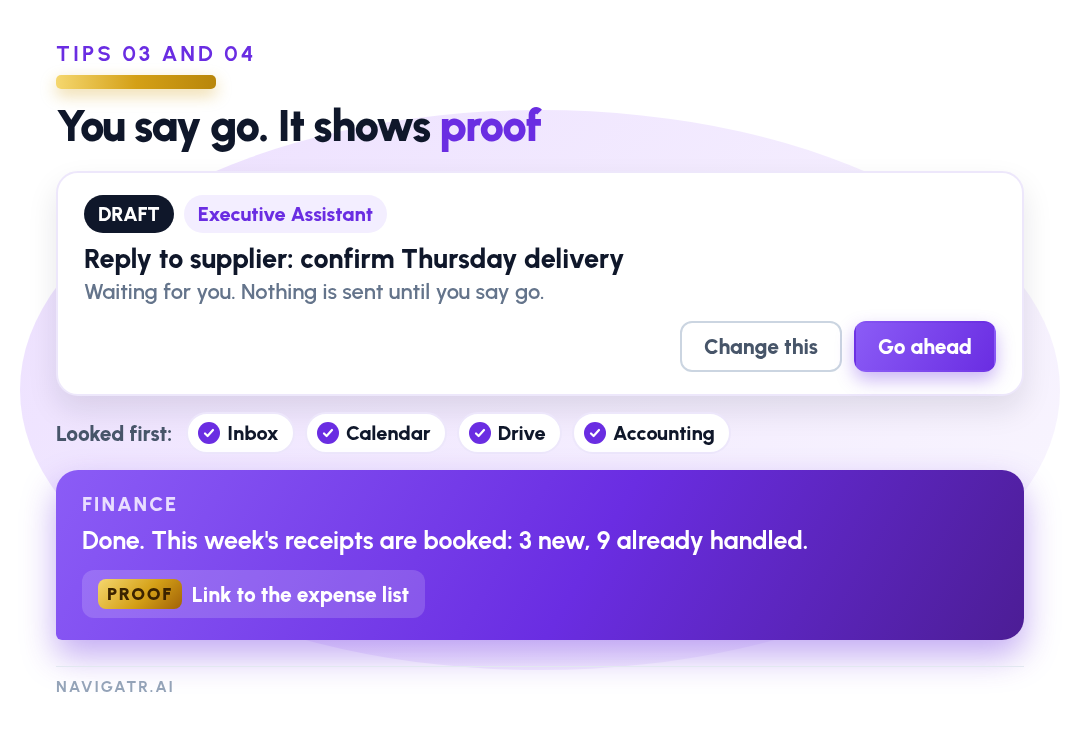
Write this rule into every assistant's instructions: every outgoing email, chat message or post is prepared as a draft. You review it and approve it, and only then is it sent.
If you allow an exception, make it narrow and write it down. For example, a Finance seat may book routine expenses in the accounting system on its own, because the work is repetitive and low risk. It still cannot pay a bill or send an invoice. Anything big or irreversible, like spending beyond the agreed plan, signing up for services or deleting anything, always needs an explicit go-ahead.
Two more safeguards worth adding:
- At the moment you approve a draft, the assistant checks that nobody has already replied, so a customer never gets two answers.
- Passwords and card numbers never go into chat. If a login is needed, you sign in yourself.
Tip 4: Look first, then show proof
Two habits stop most of the frustration people have with AI assistants.
Look before asking. Before an assistant asks you a question, it searches what it can already reach: inbox and sent mail, calendar, Drive, CRM and accounting. It comes back with "here's what I found, and the one thing I still need from you is...". It should never ask for a link or a figure it could open itself. The live email thread or accounting record always wins over memory or an old note.
Proof before done. An assistant may not say a task is finished without evidence in the same message: a link to the document, the email or calendar entry it created, the record number in accounting, or a count such as "3 new, 9 already handled". Done with no proof counts as not done. If it is blocked, it says so and says what it tried.
Tip 5: Do it by hand, then schedule it
Routines are what keep work moving while you're away. But don't automate something you have never done by hand.
- Do the task once, properly, with the assistant, using live data.
- Correct it: note what it got wrong or missed.
- When the task repeats, save the steps as a skill, a reusable playbook any assistant can follow.
- Test the skill the same day and check its proof. A run with no visible output counts as a failure.
- Only then put it on a routine, with an instruction to stay quiet when there is nothing new.
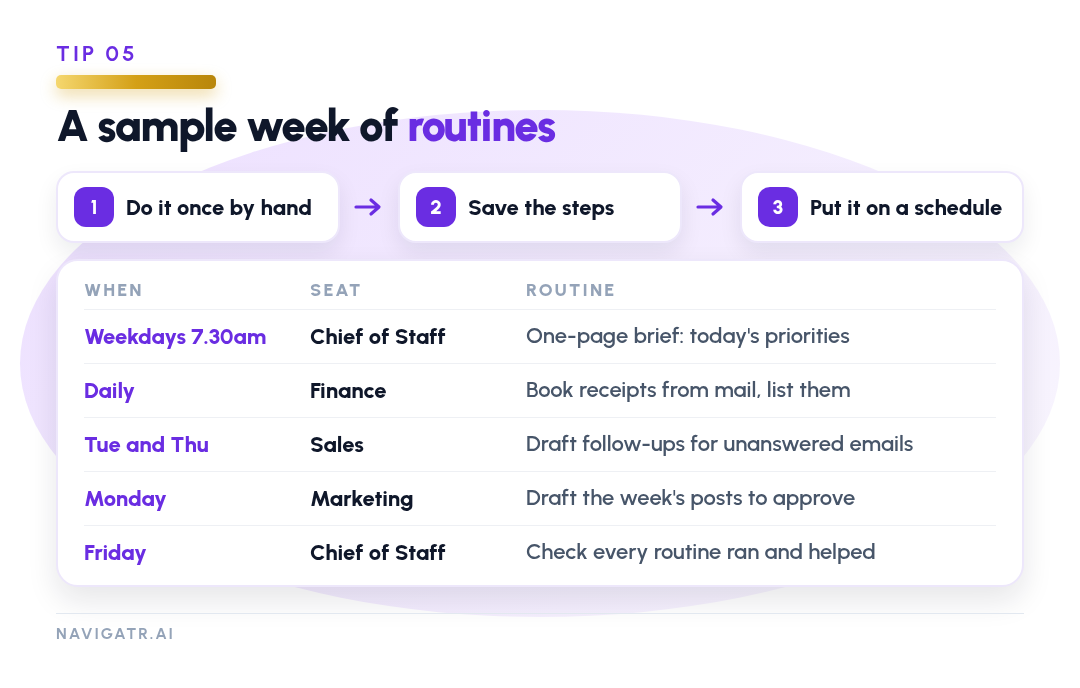
A sample week might look like this:
- Weekdays 7.30am, Chief of Staff: a one-page brief of today's priorities.
- Daily, Finance: book receipts found in mail and list what was booked.
- Tuesday and Thursday, Sales: draft follow-ups for sent emails with no reply.
- Monday, Marketing: draft the week's posts for approval.
- Friday, Chief of Staff: check every routine ran and was useful, and cut anything noisy.
That morning brief becomes your one review point each day. Everything else stays quiet unless something needs you. And never write a routine that sends customer mail by itself.
Your first month
- Week 1: connect email, calendar and Drive. Set up your Chief of Staff and Executive Assistant. Write the approval rule into both. Run the morning brief by hand each day.
- Week 2: turn the morning brief and a follow-up chaser into skills and test them. Add Sales and connect your CRM.
- Week 3: put the tested skills on routines. Add Finance and connect accounting.
- Week 4: run the first weekly routine check, cut anything noisy, and decide which seat to add next based on work that actually repeated.
By the end of the month you should have a handful of named seats, a few tested skills, quiet routines and the habit of approving drafts rather than writing from scratch.
Want help setting up your first seats? Start at navigatr.ai.